
Beginning in late December, 2021, some customers using Adobe Acrobat Reader, Adobe DC, or other Adobe Creative Cloud product may receive an error indicating their Adobe license expired. One example may appear like this:

How do I fix this error?
1. Log back into your Adobe software product using your PennKey. NOTE: if you are currently logged in open Adobe Acrobat and navigate to the top right corner and click on your avatar:

2. Make sure you select the "Company or School Account" option when logging in.

3. After logging back into an Adobe product, the license expiration notice should resolve.
Click open and Adobe Acrobat should launch.
-------------------------------------------------------------------------------------------------------------------------------------------------
If are a new hire to the Division of Finance after 10/01/2022 your Adobe Account has been Migrated by ISC to be your PennKey ID. The directions below will apply to your account.
- At the Adobe “Sign in” screen log in with your Penn Email address
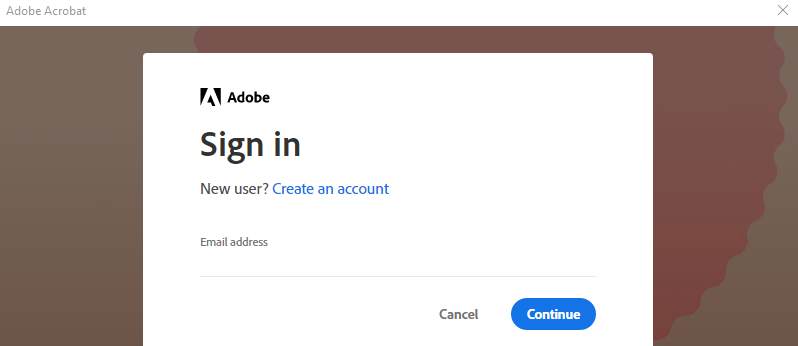
- Select “Company or School Account”
- Log in with your PennKey ID and password, and verify with DUO Mobile

- You will then be authenticated and logged in to Adobe Acrobat.